🔧 Additional Features
Application settings, output file naming, session recovery after a crash or power loss, common troubleshooting, and other important G-Labs Automation reference material.
8.1 Settings
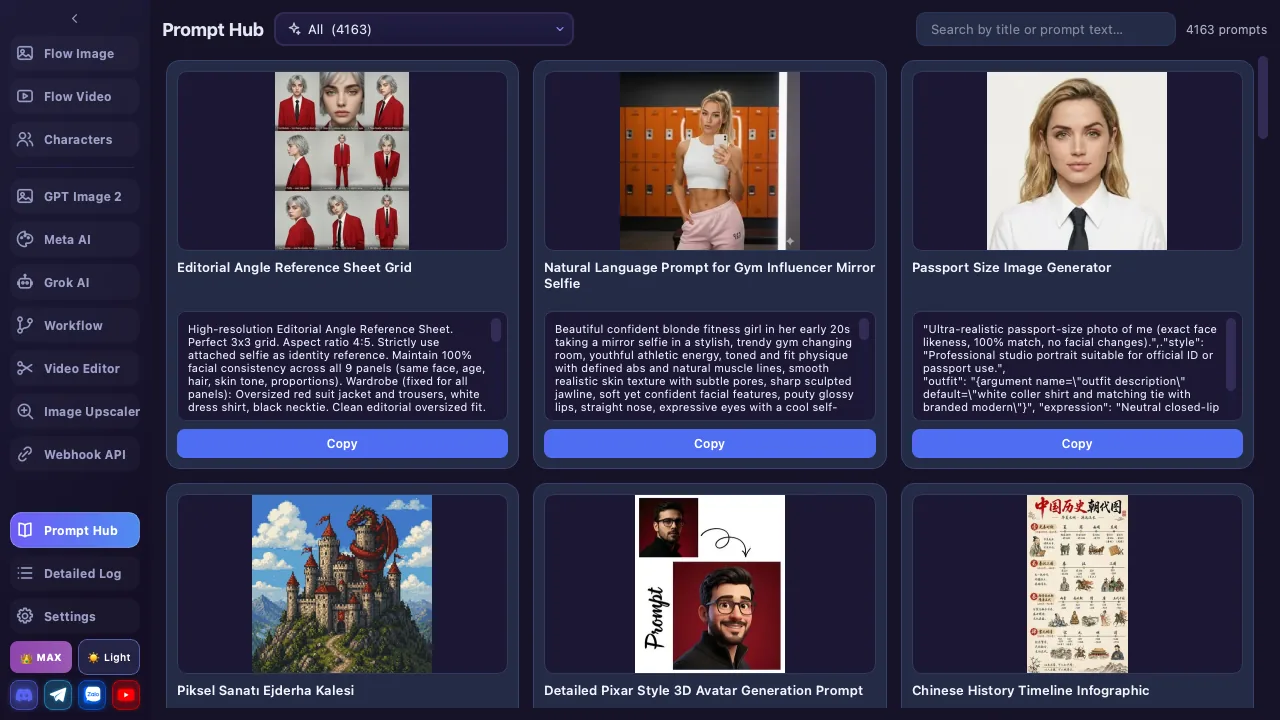
The Settings window has 8 tabs, accessible from the ⚙️ Settings icon on the sidebar.
| # | Tab | Contents |
|---|---|---|
| 1 | Gemini / Flow Accounts | Google accounts for image/video (Veo) generation + per-account Proxy config |
| 2 | Meta Account | Connect a Meta (vibes.ai) account for Meta AI — the meta_session cookie |
| 3 | Super Grok Account | Connect Grok via the G-Labs Auth Helper Chrome extension + Connection Status panel |
| 4 | Authentication Setup | Choose Built-in / Chrome Extension auth mode |
| 5 | License Accounts | Sign in, view plan, upgrade |
| 6 | General Settings | Language, author info |
| 7 | Logs | Detailed log console |
| 8 | About | App / author information |
Tab 1: Gemini / Flow Accounts
Manage the Google accounts used to generate images and Veo videos (the 11-column account table is detailed in the Account Management section). Two ways to add: 🌐 Browser Login (opens the internal Chromium) or ➕ Add by Cookie (paste a cookie string). Per-account proxy is configured right inside this tab.
Proxy (per-account) PLUS
Each account gets its own proxy via the Proxy button in the Actions column (Plus/Max only). The dialog lets you toggle the proxy, quick-enter host:port:user:pass, pick a protocol (HTTP / HTTPS / SOCKS4 / SOCKS5), and Test Proxy before saving.
Tab 2: Meta Account
Connect a Meta (vibes.ai) account for the Meta AI module. Add via 🌐 Browser login (cookie lasts ~30 days) or 🍪 Paste cookie from vibes.ai (must contain meta_session). Add multiple accounts to run round-robin.
Tab 3: Super Grok Account
Connect the Grok account for the Grok AI module. Since v5.0+ it uses the G-Labs Auth Helper Chrome extension — no manual cookie management.
- 3-step extension install guide right in the tab
- Open grok.com in Chrome (same window as the extension) and sign in
- The Connection Status panel shows whether Bridge / Extension are connected; 🔍 Check Connection re-polls instantly
Tab 4: Authentication Setup
Choose how the system authenticates when calling image/video APIs.
| Mode | Description |
|---|---|
| 🔧 Built-in | Uses Playwright — a built-in headless browser. No extra install needed. Auto-opens a background browser, handles auth, rotates profiles. 5 auth tokens/session |
| 🧩 Chrome Extension | Uses a Chrome Extension installed on your Chrome. Requires Chrome to stay open and logged into Google on the Flow page. Good when Built-in is blocked |
Tab 5: License Accounts (License & Upgrade)
Sign in, view your current plan, and upgrade.
| Component | Description |
|---|---|
| Plan Status | Current plan (Basic/Plus/Max), expiry date, signed-in account |
| Google Sign-in | Sign in with Google to activate the license |
| Upgrade | Choose plan → duration → pay via VietQR, PayPal or USDT/Binance |
| Auto-check | Periodically checks license status |
| Logout | Remove the license from this device |
Plan Comparison
| Feature | Basic | Plus | Max |
|---|---|---|---|
| Concurrent threads | 1 | 10 | ♾️ Unlimited |
| Parallel tasks | 1 | 10 | ♾️ Unlimited |
| Images / generation | 1 | 4 | 4 |
| Videos / prompt | 1 | 4 | 4 |
| Prompt limit | 10 lines | ♾️ | ♾️ |
| Grok AI (4 tabs) | ❌ | ✅ | ✅ |
| Meta AI (4 tabs) | ❌ | ✅ | ✅ |
| Workflow (run) | ❌ | ✅ | ✅ |
| Video Editor (export / slideshow) | ❌ | ❌ | ✅ |
| Video Cut | ❌ | ❌ | ✅ |
| Webhook API | ❌ | ❌ | ✅ |
| Per-account proxy | ❌ | ✅ | ✅ |
| Image upscale (2K/4K) | ❌ | ✅ | ✅ |
| Video upscale (1080p/4K) | ❌ | ✅ | ✅ |
| Video modes / advanced merge | ❌ | ✅ | ✅ |
| Retry errors | ❌ | ✅ | ✅ |
| Auto-renew | ❌ | ✅ | ✅ |
Tab 6: General Settings
| Setting | Description |
|---|---|
| Language | 9 languages: Tiếng Việt, English, हिन्दी, বাংলা, Português, Русский, Türkçe, اردو, 简体中文 — changes immediately |
| Author Info | Name, handle, website (auto-loaded from server) |
Tab 7: Logs
| Feature | Description |
|---|---|
| Log Console | Text-based log viewer — max 5,000 lines, auto-scrolls to bottom |
| 📋 Copy All Logs | Copy the entire log to clipboard |
| 🗑 Clear | Clear all logs |
Tab 8: About
App introduction, version, and author information.
8.2 Recovery & Error Handling
| Error Type | Auto-Recovery |
|---|---|
| 403 Forbidden | Refresh session → rotate account → rotate proxy (if available) |
| Timeout | Retry up to 5 times |
| Auth (Built-in) | Browser auto-handles, 5 tokens/session, profile rotation |
| Auth (Extension) | Chrome Extension handles it, requires Chrome to stay open |
| No accounts available | Stops after 5 consecutive failures to find an available account |
Auto-Update
The app checks the version from the server → shows a notification → downloads → replaces files → restarts.
8.3 Incompatible Software
The following software may conflict when running alongside G-Labs Automation, causing an Environment check failed — worker cannot start error.
| # | Software | Type |
|---|---|---|
| 1 | Fiddler / Fiddler Everywhere | HTTP Debugging Proxy |
| 2 | Charles Proxy | HTTP Proxy / Monitor |
| 3 | mitmproxy / mitmweb / mitmdump | Network Proxy Tool |
| 4 | Burp Suite / Burp Loader | Web Testing Platform |
| 5 | Proxyman | HTTP Debugging Proxy |
| 6 | HTTP Toolkit | HTTP Debugging Tool |
| 7 | HTTP Debugger Pro | Network Analyzer |
| 8 | Reqable | API Debugging Tool |
| 9 | OWASP ZAP | Web App Scanner |