🔗 Workflow Editor
Visual node-based editor — connect processing steps into an automated image and video generation pipeline. Drag, connect, press RUN — the system handles batch processing automatically.
6.1 Interface
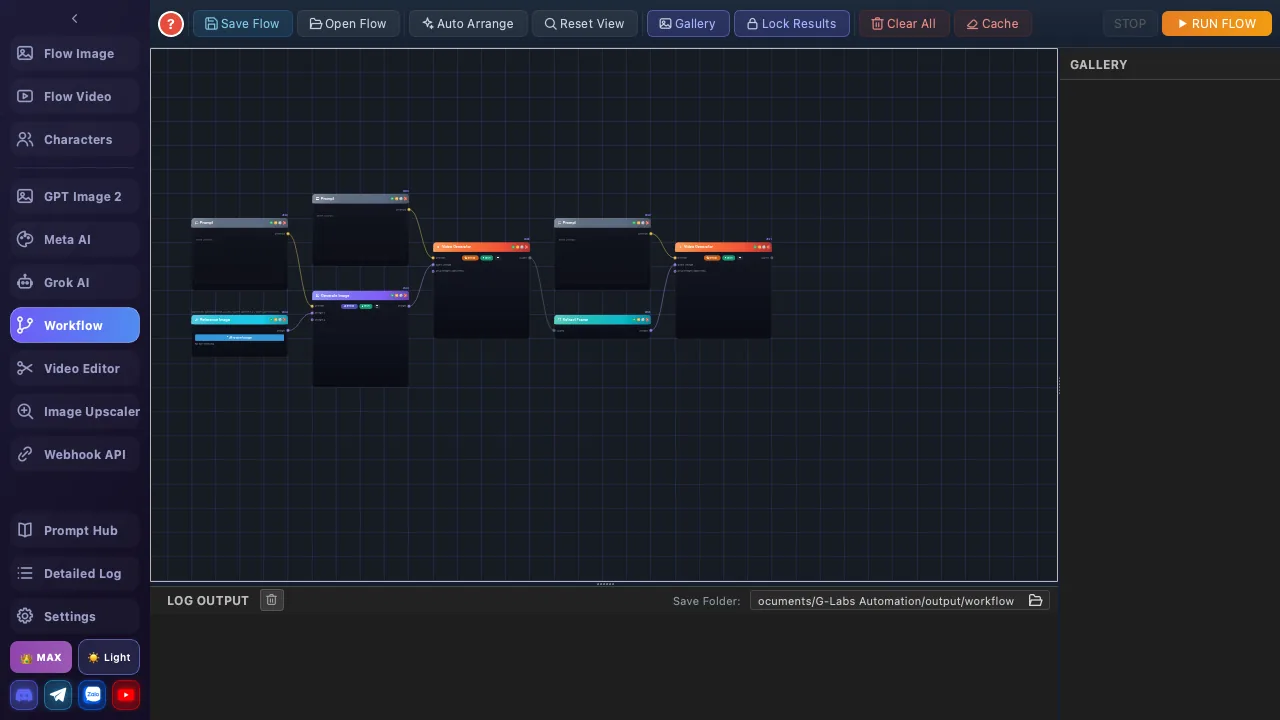
Toolbar
| Button | Function |
|---|---|
| 💾 Save Flow | Save the current workflow (every node + connection + widget value) to a .json file |
| 📂 Open Flow | Load a saved .json — clears the current canvas first |
| ✨ Auto Arrange | Lay out nodes so connections don't overlap |
| 🔍 Reset View | Reset zoom + pan so all nodes fit in the visible area |
| 🖼 Gallery | Toggle the image gallery panel below the canvas (default: on) |
| 🔒 Lock Results | On by default. Finished nodes keep their result → next RUN skips them, downstream nodes reuse cache → saves credits when tweaking the tail of a flow |
| 🗑 Clear All | Wipe every node + connection from the canvas |
| 🧽 Cache | Clear the upload cache — useful when you replaced an image but kept the same filename |
| ⏹ STOP | Stop the running workflow immediately (only active during RUN) |
| ❓ Help | Open the Workflow help / shortcuts panel |
| ▶ RUN FLOW | Run the entire workflow following connections. Requires Plus / Max plan |
Other Areas
| Area | Description |
|---|---|
| Canvas | Node placement, drag & drop, connections. Right-click empty space → add node or create group |
| Minimap | Bottom-right overview, updates in real-time |
| Log Panel | Execution logs (🟢 Success / 🟡 Warning / 🔴 Error) + dedicated 🗑 Clear Log button |
Canvas Interactions
| Action | Effect |
|---|---|
| Right-click | Add new node or create group menu |
| Drag node | Move node on canvas |
| Drag from socket | Create connection between nodes. Drop on empty area → opens Quick Add menu |
| Scroll wheel | Zoom in / out |
| Ctrl+Z / Ctrl+Y | Undo / Redo |
| Ctrl+C / Ctrl+V | Copy / Paste nodes (preserves all configuration) |
| Delete | Remove selected node or connection |
6.2 Node Types Overview
Workflow has 8 node types (canonical set in node_executor.py):
| Node | Input | Output | Description |
|---|---|---|---|
| 💬 Prompt | — | Prompt | Single line of text. e.g., a cat sleeping on a sofa |
| 📝 Batch Prompt Loader | — | Prompt (loop) | Many prompts, one per line — node loops, each prompt triggers one downstream run |
| 📎 Reference Image | — | Image | Pick an image from disk to use as reference. Supported by Nano Banana 2 / Pro |
| 📦 Batch Image Loader | — | Image (loop) | Pick a folder — node loops over each image |
| 🖼 Generate Image | Prompt + Image refs | Image | AI image generation — Model (Nano Banana 2 / Nano Banana Pro), aspect ratio, seed, resolution (1K/2K/4K) |
| 🎬 Video Generator | Prompt + Image (per mode) | Video | 2 modes: Image-to-Video (Start + End image) or Components (3 component images). Has 720p/1080p/4K upscale |
| 🎨 Grok AI | Prompt + Image (per mode) | Image / Video | 4 Grok modes: T2I / I2I / T2V / I2V — aspect ratio, 6s/10s length, 480p/720p resolution |
| 🎞 Extract Frame | Video | Image | Extract the last frame of a video → handy for chaining videos (last frame of video 1 = Start image of video 2) |
6.3 Node Details
📦 Batch Image Loader
Source node — loads images from a folder to feed downstream processing nodes.
| Setting | Details |
|---|---|
| Folder | Click "Browse" to select image folder. Supports: PNG, JPG, JPEG, WebP, BMP |
| Sort Mode | 6 modes: A-Z, Z-A, Newest, Oldest, Random, Match Prompt |
| Limit | All or custom count (e.g., first 10 images only) |
sunset_beach.png will match a prompt containing "sunset beach".📝 Batch Prompt Loader
Source node — provides a list of prompts for image/video generation nodes.
| Setting | Details |
|---|---|
| Prompt List | Type directly in the text area — one prompt per line |
| Mode | Sequential (top to bottom in order) or Random |
| Limit | All or custom count |
🖼 Generate Image
Core processing node — receives prompt + reference images, calls AI API to generate images.
| Setting | Details |
|---|---|
| Model | 2 models: Nano Banana 2, Nano Banana Pro |
| Ratio | Landscape, Portrait, Square, etc. (varies by model) |
| Seed | Random or fixed (enter number) — reproduce identical results |
| Resolution | 1K / 2K / 4K (Nano Banana Pro only) |
| Prompt | Type directly or receive from connected Batch Prompt Loader node |
Inputs: Socket 1 = Reference image (from Ref node), Socket 2 = Prompt (from Batch Prompt). Output: Generated image (auto-previews on node).
🎬 Generate Video
AI video generation node — 2 selectable modes (Image-to-Video / Components).
| Setting | Details |
|---|---|
| Mode | Image-to-Video (start + end image) or Components. Leave the start image empty = Text-to-Video. This node has no Omni Flash / voice |
| Ratio | Landscape (16:9) / Portrait (9:16) |
| Resolution | 720p / 1080p / 4K |
| Prompt | Type directly or receive from connection |
🎨 Generate Grok (Grok AI)
Generates images/videos with Grok — 4 modes: T2I (text→image), I2I (image→image), T2V (text→video), I2V (image→video). Config: aspect ratio (9:16, 16:9, 1:1, 2:3, 3:2), video length 6s/10s, resolution 480p/720p. Requires a connected Super Grok account.
📎 Reference Image
Pick a single image from disk → feeds the reference socket of Generate Image / Video Generator. Only works with Nano Banana 2 / Nano Banana Pro models.
🎞 Extract Frame
Pulls the last frame of a video out as an Image. Used to chain videos: last frame of video 1 → Start Image of video 2.
💬 Prompt (Single Line)
Single-line text node — instead of typing a prompt directly into a Generate node. Useful when the same prompt feeds multiple Generate nodes.
6.4 Node Groups
- Right-click → New Group: Create a named grouping frame on the canvas
- Drag edges to resize groups
- Groups help organize complex workflows — cluster related nodes together
- Nodes inside a group move together when dragging the group
6.5 Execution
When pressing RUN FLOW, the system performs:
- Topological sort — determines execution order based on connections. Detects and warns about cycles
- Iteration count — number of loops = max(images in Batch Image, prompts in Batch Prompt)
- Each iteration: feeds 1 image + 1 prompt (rotates if exhausted) → runs all processing nodes in order → saves results
| State | Icon | Meaning |
|---|---|---|
| Idle | ⚪ | Not yet run |
| Running | 🟡 | Processing |
| Success | 🟢 | Completed |
| Error | 🔴 | Failed — downstream nodes will also fail |
| Skipped | 🟣 | Skipped (manually flagged) — data passes through without processing |
| Disabled | ⬛ | Disabled — completely excluded from execution |
6.6 Workflow Examples
Example 1: Batch image generation (basic)
Generate images from a prompt list, no reference images:
📝 Batch Prompt → 🖼 Generate Image → 💾 Save Image- Add 📝 Batch Prompt Loader — enter 10 prompts, Sequential mode
- Add 🖼 Generate Image — select Nano Banana 2, Landscape ratio
- Add 💾 Save Image — set prefix "nature", choose save folder
- Connect: Prompt → Generate Image prompt socket → output → Save Image
- Press RUN FLOW → system runs 10 iterations, one prompt each
Example 2: Image generation with references (advanced)
Use reference images from a folder for style transfer:
📦 Batch Images → 📎 Ref (Std) ↘
                                 🖼 Generate Image → 💾 Save
📝 Batch Prompt ───────────────↗- Add 📦 Batch Image Loader — select folder with 5 style images, sort A-Z
- Add 📎 Reference Image — category: Style
- Add 📝 Batch Prompt Loader — enter 5 matching prompts
- Add 🖼 Generate Image — Nano Banana 2 model, Random seed
- Connect: Batch Images → Ref → Generate Image ref socket. Batch Prompt → prompt socket
- Press RUN FLOW → 5 iterations, each pairs 1 style image + 1 prompt
Example 3: Auto-match images to prompts
Image filenames are automatically paired with prompts containing matching keywords:
📦 Batch Images (Match Prompt) → 📎 Ref ↘
                                          🖼 Generate → 💾 Save
📝 Batch Prompt ────────────────────────↗- 📦 Batch Images — folder contains:
cat.png,dog.png,sunset.png. Sort: Match Prompt - 📝 Batch Prompt — enter: "a cute cat sleeping", "a dog running on beach", "beautiful sunset over ocean"
- When running: prompt "a cute cat sleeping" → auto-pairs with
cat.png(filename matches) - Matching strategy: compares filename (without extension) against prompt text, prioritizes longest match
6.7 Save / Load
| Action | Details |
|---|---|
| Save Flow | Save entire workflow as JSON file — includes nodes, connections, positions, config, groups |
| Open Flow | Open saved JSON file — fully restores state |
| Default Workflow | default.json auto-loads when app starts |
| Ctrl+S / Ctrl+O | Quick save / open shortcuts |
| Auto Arrange | Automatically reorganize node positions for clean layout |
| Auto-center | Workflow auto-centers on canvas after loading |