✂️ Video Editor
Built-in video editing tool — two modes in one page: 🎬 Video Edit (trim/merge clips) and 🎞️ Image Slideshow - Match SRT (build an image slideshow timed to subtitles). Access via the Video Editor button on the sidebar.
6.1 Interface & Two Modes
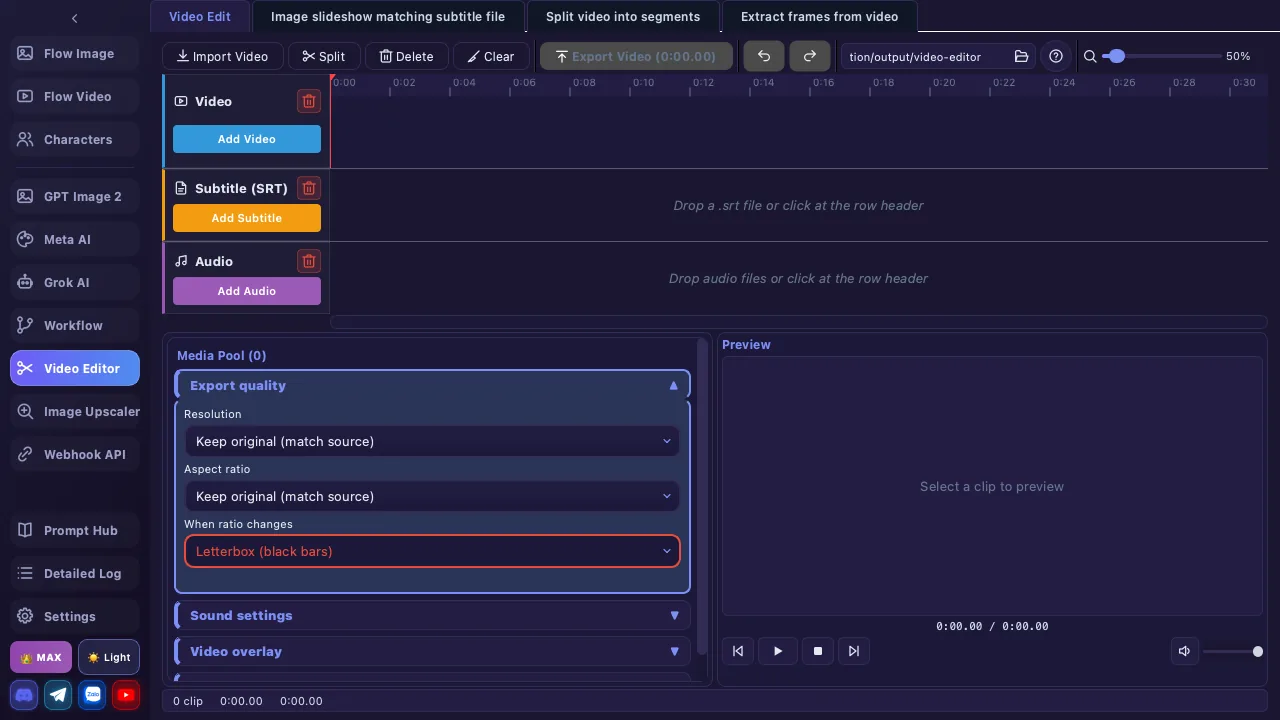
At the top of the page is a mode bar with two buttons (the page always opens in Video Edit):
| Mode | Purpose |
|---|---|
| 🎬 Video Edit | Trim, split, arrange and merge multiple clips into one video |
| 🎞️ Image Slideshow - Match SRT | Build a slideshow video from images, auto-timed to an SRT subtitle file + background music |
The mode decides which toolbar, timeline rows, and bottom panel are shown. Overall layout, top to bottom:
| Area | Description |
|---|---|
| Mode bar | Video Edit / Image Slideshow buttons |
| Toolbar | Import, Split, Delete, Clear, Export, Undo/Redo, save folder 📁, help ❓, zoom slider (20–500%) |
| Timeline (multi-track) | Video Edit: Video row only. Slideshow: 3 rows — Images / Subtitle (SRT) / Audio |
| Bottom panel — left | Video Edit: Media Pool. Slideshow: Slideshow Options + Image Pool |
| Bottom panel — right | Preview — player + transport controls |
| Status bar | Clip count, total duration, playhead position |
6.2 Video Edit Workflow
- Import videos: Click 📥 Import Video or drag & drop files into the Media Pool / Timeline
- Add to Timeline: Select clips in the Media Pool → click ➕ or drag them onto the Video row
- Arrange: Drag a clip body to reorder (orange drop indicator)
- Trim: Drag the left/right edges of a clip to trim the start/end
- Split: Move the playhead to the cut point → click ✂️ Split or press S
- Preview: Click ▶ or press Space
- Export: Click 📤 Export Video → merge all clips into a single MP4
6.3 Media Pool
| Action | Description |
|---|---|
| Import | Choose files or drag & drop from Explorer/Finder |
| ☑ Select All | Check/uncheck all clips |
| ➕ Add to Timeline | Add selected clips to the Video row |
| 🗑 Remove | Remove selected clips from the Media Pool |
| Double-click | Preview clip |
| Drag-to-check | Hold the mouse on a checkbox and sweep to select multiple clips |
| Right-click | Menu: Add to timeline / Remove from pool |
Supported video formats: .mp4, .mov, .avi, .webm, .mkv, .m4v, .flv, .wmv
6.4 Timeline (Video Edit)
| Action | Description |
|---|---|
| Drag clip body | Reorder clips |
| Drag clip edges | Trim start/end — min length 0.1s |
| Click ruler / empty area | Move playhead (snaps to clip edges) |
| X in clip corner | Quick-delete a clip |
| Scroll wheel | Horizontal scroll |
| Ctrl + Scroll / Ctrl + ± | Zoom in/out (Alt + Scroll = fine zoom) |
| Ctrl + 0 | Fit to view |
6.5 Preview & Controls
| Button | Description |
|---|---|
| ⏮ / ⏭ | Previous / Next clip |
| ▶ / ⏸ | Play / Pause |
| ⏹ | Stop |
| 🔊 / 🔇 | Mute/unmute + volume slider (0–100%) |
Shows clip info: duration, resolution (WxH), file size, FPS, codec, and trim amount. In Slideshow mode, clicking an image block shows that still in the preview.
6.6 Slideshow Mode — Match SRT 🎞️ ⭐
Build a slideshow video from a set of images, auto-timing each image to a subtitle line in an SRT file, with optional background music.
Workflow
- Switch to 🎞️ Image Slideshow - Match SRT
- Images (required, ≥1): drag onto the Images row or click 📥 Add Images. Images are ordered by natural filename order (img2 before img10) → name them numerically to match subtitle order
- Subtitle SRT (optional, one file only): 📥 Pick SRT. Importing a new one replaces it
- Audio (optional, multiple): 📥 Add Audio
- Set options in the Slideshow Export Options panel (below)
- Click 🎞️ Export Video → choose output (a .mp4 file for "Full video", or a folder for "Separate clips")
Slideshow options
| Group | Option | Details |
|---|---|---|
| Export mode | Full video (merge all) / Separate clips (one file per image) | Default: Full video → one MP4. Separate clips → one MP4 per image into a chosen folder |
| Duration per image (when NO SRT) | Fixed / Random / Fit to audio | Fixed: 1–60s (default 8s). Random: min–max (default 4–8s). Fit to audio: splits the music length evenly across images |
| Motion effects (Ken Burns) | Pan left / right / up / down, Zoom in, Zoom out | 6 checkboxes. Each scene picks a random effect from those enabled (no two adjacent scenes repeat). Leave empty = static images |
Output
- MP4 (H.264), 30 FPS. Resolution is taken from the first image (put a correctly-sized image first) — there is no separate FPS/aspect option
- No effects + Full mode → fast concat (images letterboxed to fit). Any effect or Separate clips → per-scene render with Ken Burns (images fill the frame)
- Filenames: Full →
slideshow_YYYYMMDD_HHMMSS.mp4. Separate → aslideshow_<timestamp>/folder ofNN_<image name>.mp4files
Slideshow formats: Images .png .jpg .jpeg .webp .bmp · Audio .mp3 .wav .m4a .aac .ogg .flac · Subtitle .srt
6.7 Export (Video Edit)
- Merges all Video-row clips into a single MP4 file
- Choose the output folder via the 📁 field on the toolbar (remembered across sessions)
- Progress bar shows % (Trim clips → Merge → Done)
- Default filename:
merged_YYYYMMDD_HHMMSS.mp4
6.8 Keyboard Shortcuts
| Key | Action |
|---|---|
| Space | Play / Stop |
| S / Ctrl+B | Split at playhead |
| Delete / Backspace | Delete selected clip |
| ← / → | Playhead ∓1 second |
| Shift + ← / → | Playhead ∓1 frame |
| Home / End | Jump to start / end |
| Ctrl+Z | Undo |
| Ctrl+Shift+Z | Redo |
| Ctrl + = / Ctrl + - | Zoom in / out |
| Ctrl + Scroll | Zoom (Alt + Scroll = fine zoom) |
| Ctrl + 0 | Fit to view |
Click the ❓ button on the toolbar for the full shortcut reference.