🖼️ AI Image Creator ⭐
Batch AI image generation with 3 Flow models, reference images, resolution upscaling, and a powerful queue system.
4.1 AI Models
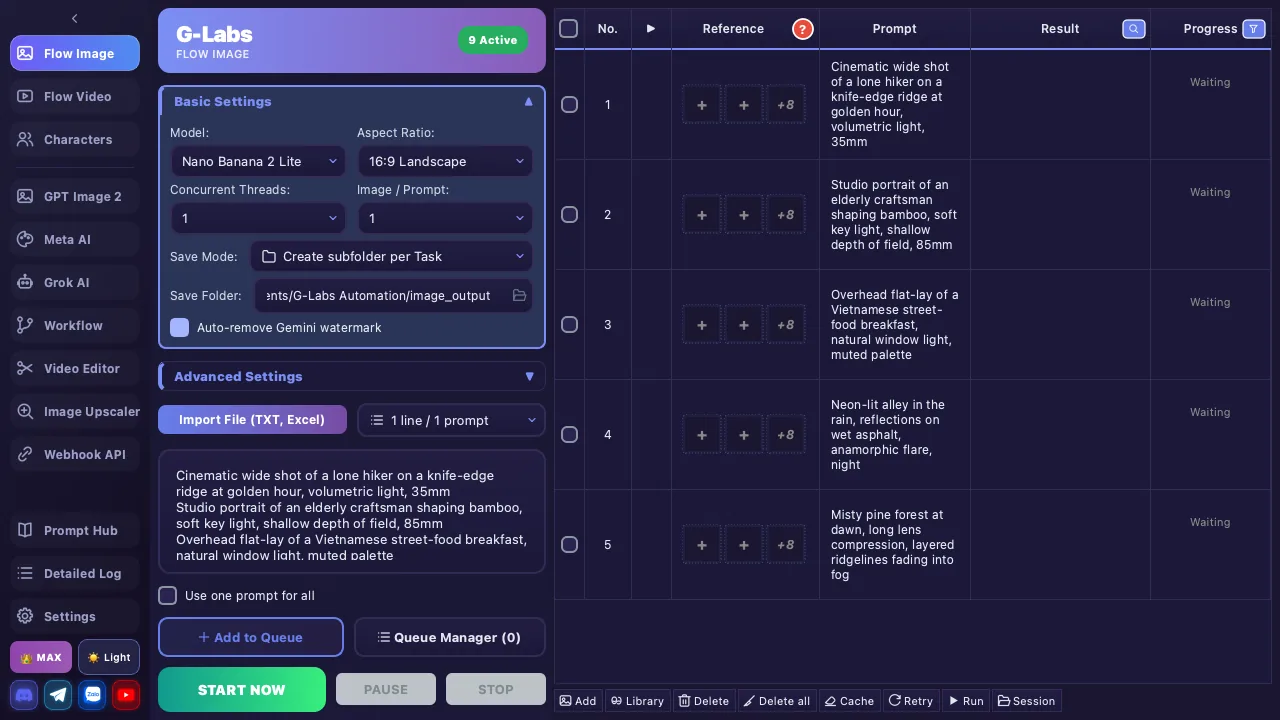
The Flow Image screen: the prompt list on the left, each line becoming one task row on the right with its own reference image, result and progress. Feature 🍌 Nano Banana 2 (default) 🍌 Nano Banana Pro 🍌 Nano Banana 2 Lite Reference mode Flow — generic references (uncategorized) Flow — generic references (uncategorized) Flow — generic references (uncategorized) Max references 10 10 10 Auth ✅ Automatic ✅ Automatic ✅ Automatic Aspect Ratio 1:1, 3:4, 4:3, 9:16, 16:9 1:1, 3:4, 4:3, 9:16, 16:9 1:1, 3:4, 4:3, 9:16, 16:9 Upscale 2K / 4K 2K / 4K 2K / 4K Default delay 2-3s 2-3s 2-3s
ℹ️ Recent builds ship 3 Flow models : Nano Banana 2 (default), Nano Banana Pro and Nano Banana 2 Lite (lightweight). The old Imagen 4 and Nano Banana (Whisk) models are retired — there are no more Subject/Scene/Style categories; all references share one generic slot.
4.2 Configuration Panel
The config panel is on the left side , containing:
Setting Details Notes Model Nano Banana 2 (default), Nano Banana Pro, Nano Banana 2 Lite Model list loaded from server Quality 1K (original), 2K, 4K 2K: Plus/Max, 4K: Plus/Max + Ultra account Aspect Ratio Depends on model (see table above) Auto-updates when model changes Images/Prompt 1 to 4 Basic: 1 only Threads 1 account supports usually 10 threads (subject to server load), multiple accounts rotate round-robin Basic: 1 / Plus: 10 / Max: unlimited * Delay Min - Max (seconds), range 1-300 Auto-adjusted per model Reference Mode Default / 1 for all / Sequential 1 for all + Sequential: Plus/Max Lock Seed 6-digit number (100000-999999) Reproduce identical results Import Prompts Click Import button or drag & drop file Supports TXT, Excel (.xlsx/.xls) Prompt Parse Mode 1 line/prompt or Blank line split Blank line for multi-line prompts Save Mode No subfolders / By task / By prompt Default: By task Output Folder Where generated images are saved Supports drag & drop folder Reference Folder Reference images for auto-matching Supports drag & drop folder
Reference Mode Details
Mode Description Default Assign reference images individually to each prompt row 1 for all (Plus/Max)Use the first prompt reference images for all prompts Sequential (Plus/Max)Output from previous prompt becomes reference for next prompt. Auto-switches to 1 thread and 1 image/prompt.
4.3 Auto-Match References
Automatically assigns reference images from the Reference Folder based on keywords in filenames matching the prompt content.
Keywords split by _, minimum 3 characters
Example: red_car.png creates keywords red_car, red, car
Case-insensitive matching against prompt content
4.4 Prompt Table (7 columns)
Column Description ☑️ Select Check/uncheck row (header checkbox to select/deselect all) # Auto-numbered index Task Queue task name (shown when running from queue) Reference Reference images — click to add/remove. Up to 10 (Flow) Prompt Content (directly editable in the table) Output Generated images (thumbnails, click to view) Progress 🔻 Status + Retry/Open Folder buttons. Click 🔻 to filter
Toolbar
Button Function 🖼️ Add Images Select images from folder to add to existing rows 🗑️ Delete Remove selected (checked) rows 🧹 Clear All Clear the entire table 🧽 Clear Upload Cache Clear the upload cache — useful when you replaced an image file's contents but kept the same filename (otherwise the app reuses the old upload) 🔄 Retry Errors Re-run all failed rows ▶️ Run Selected Run only checked rows 📂 Load Session Restore a session from auto-backup
Status Filter
Click the Progress 🔻 column header to filter by status: All / Waiting / Running / Success / Error.
4.5 Action Buttons
Button Function 🚀 START NOW Start generating. If queue has tasks, runs them sequentially ⏸ PAUSE Pause generation, preserving progress ⏹ STOP Stop generation completely
4.6 Queue Manager
➕ Add to Queue : Saves all current settings (model, prompts, references, quality, etc.) as a task📋 Queue Manager : Opens management dialog — rename, skip, retry, delete, edit individual tasksTask limits : Basic: 1 / Plus: 10 / Max: unlimited
Session & Backup
Auto-backup after every change (keeps max 10 files, 1 file per app session)
Load Session : Restore prompts + references + results from a previous session, or export to ExcelLast-used settings (model, ratio, folders, save mode) are auto-saved and restored on next launch
Plan Restrictions
Feature Basic Plus Max Images/Prompt 1 1-4 1-4 Concurrent Threads 1 10 Unlimited * Queue Tasks 1 10 Unlimited 2K Upscale ❌ ✅ ✅ 4K Upscale ❌ ✅ (Ultra account required) ✅ (Ultra account required) Retry Errors ❌ ✅ ✅ Ref: 1 for all ❌ ✅ ✅ Ref: Sequential ❌ ✅ ✅ Prompt Limit 10 Unlimited Unlimited
ℹ️ * Threads: Each Gemini account usually = 10 concurrent threads (subject to server load). Plus caps at 10 total, Max is unlimited.